Building an informative dashboard surely requires an administrator to know the tiny details as to how to utilise the existing features available on Workspace ONE Intelligence console .
This blog will give an insight on how to use Workspace ONE intelligence console to build dashboards which helps administrators to view important data and use the same to carry out task’s such as patching , fixing on-going device issues and various other challenges end users face on daily basis.
To begin with make sure you have the required prerequisites completed , of which access to WS1 Intelligence Console is important .If you do not have access ,then you will have to raise a request with GSS or reach out to your VMware by Broadcom representative to help with the licensing.
Assuming you have WS1 intelligence enabled and integrated with Workspace ONE UEM the following steps will showcase on how you can utilise the features currently available on the WS1 intelligence console to build an informative dashboard.
As an Administrator its is important to know exactly what you would like to view and how you need to categorise your dashboard. We shall take a look at an example in which a dashboard is created using Platform(Windows,iOS,Android etc) as a category which will then play host to multiple widgets within it.

Once logged into the WS1 Intelligence console , click on Dashboard and select ADD>Custom Dashboard

Import Dashboard can be used to import an existing dashboard, in this example we will create a custom Dashboard and name it Windows Dashboard.

Using the same steps let’s create a Dashboard for Android and iOS .

Now that the three dashboards are created for each platform , widget can be added to each of them.
Widgets play an important role as it helps an administrator to have the liberty to either create a widget from scratch or use existing templates.
To explore Templates available in Marketplace ( Which contains industry used templates) navigate to Marketplace and scroll down to select Widgets and click on view all.

Use the filter option to select Windows under platform.
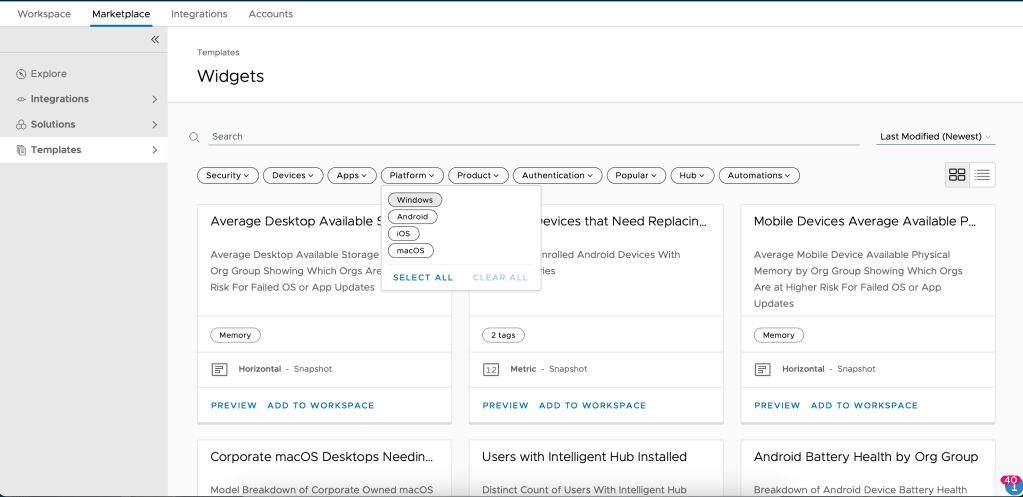
With this you should see all the templates available for Windows Platform.
Let’s select Windows Device Needing Updates by clicking on Add to Workspace seen within the widget.
Select the dropdown and select Windows Dashboard (created in previous step) and confirm by clicking on Select.

The Widget configuration page is seen , where you can customise the way the matrix looks and apply required filters.

Chart type is of Metric , the same can be changed to Horizontal , Horizontal Group,Vertical ,Vertical Group, Donut, Metric,Table and Tree map.
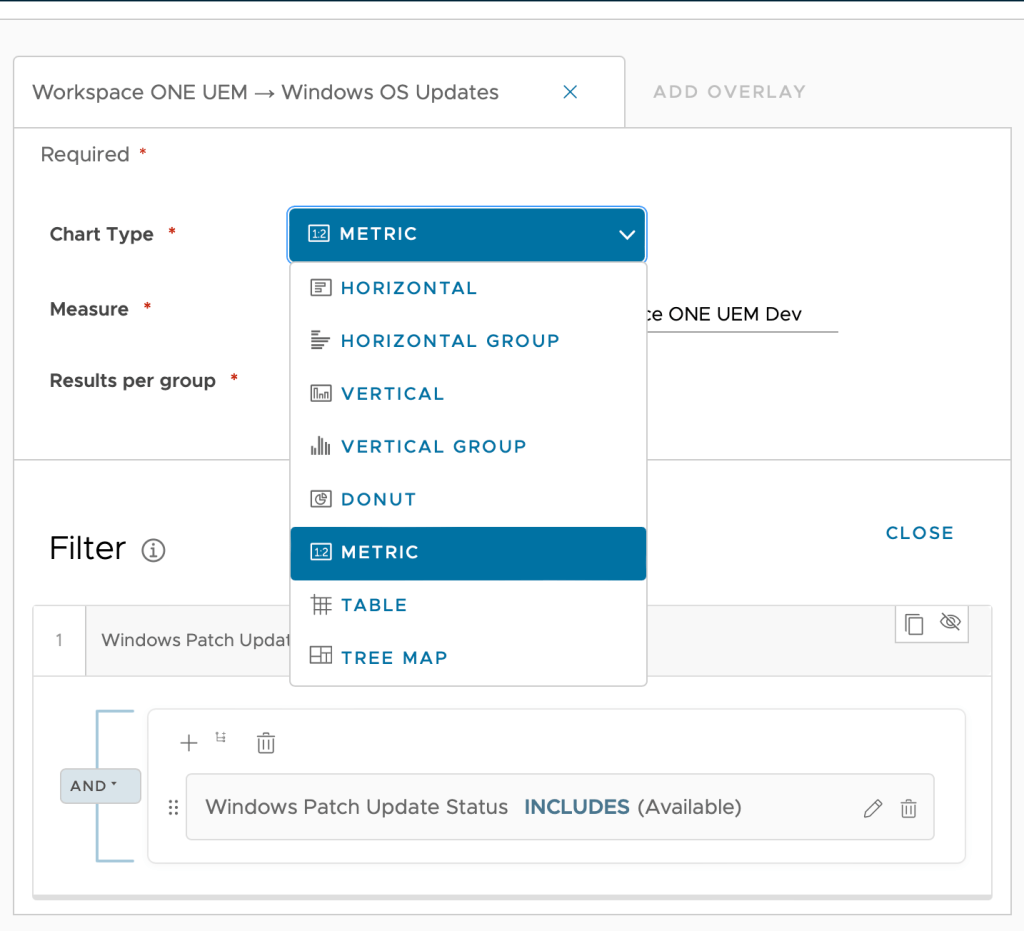
Let’s Select Donut , this will change the view of the matrix .

Customisation of Measure can be done as well.
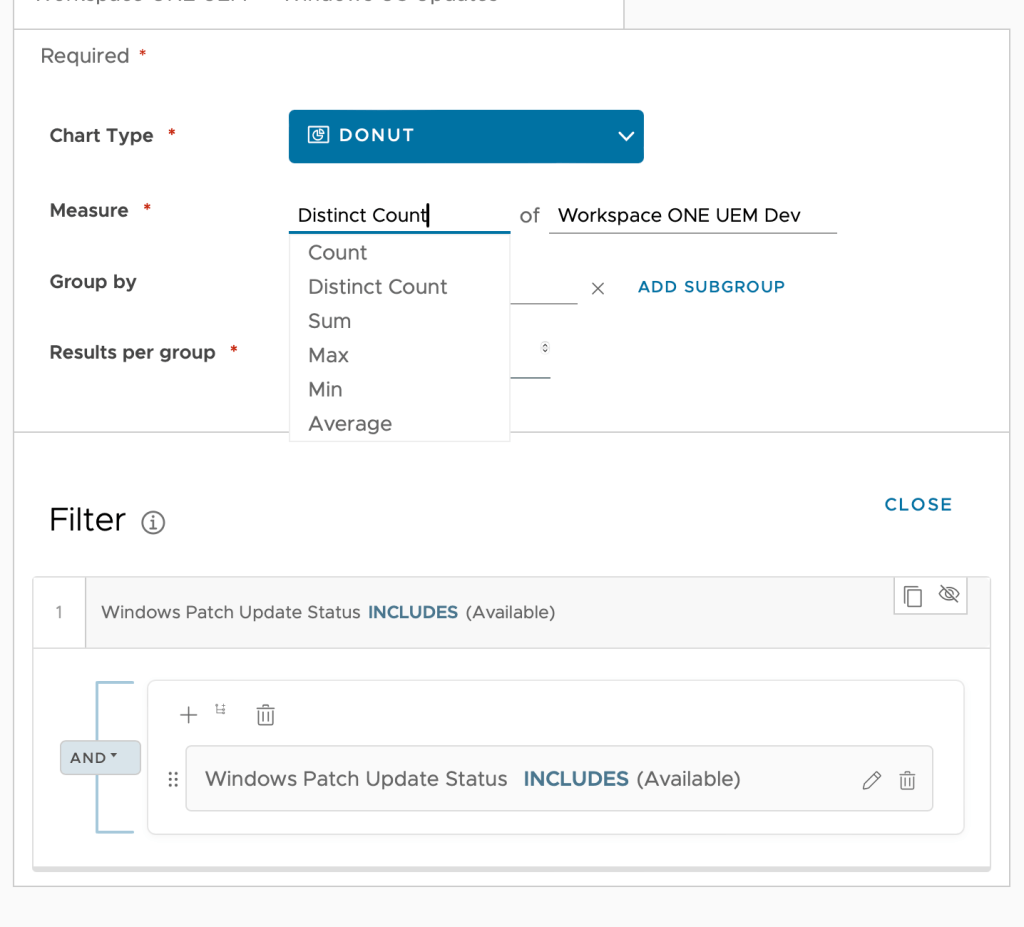
We shall keep the Distinct count as is.
Measure can be done using the option seen in the screenshot below.
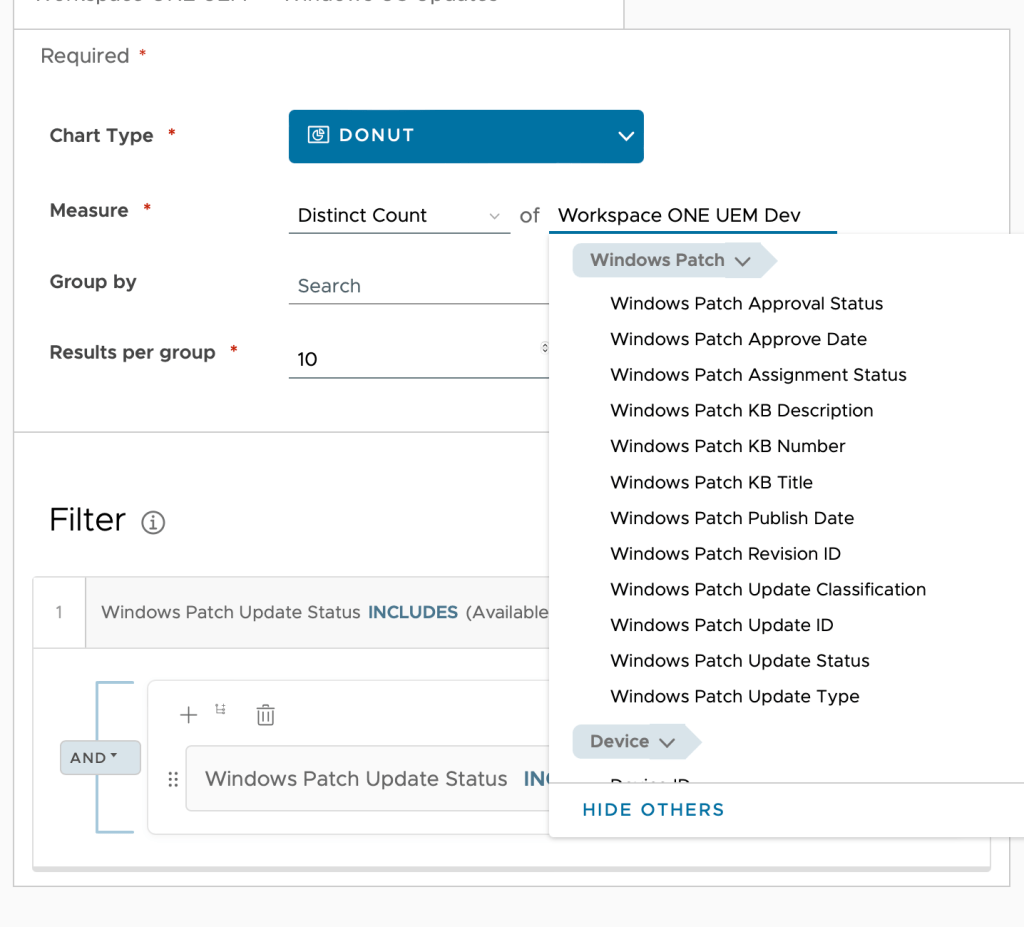
Let’s keep it as the default setting for now.
Group can be used to get an output using filters as seen in the previous step.
Result per group is set for the number of devices to be seen in on the page.
Filter helps administrators to select a particular set of Devices/Users and various other filtering options in order to view an output which is required.

Filter such as Enrolment Date can be used to filter out devices which are recently enrolled or enrolled months ago. In this manner Administrators can set precedence to achieve an output which they are looking for.
Click on Save , the Widget will be added to the Dashboard. Using the same procedure I have added few more widgets and also built one widget from scratch to display Windows Applications List.
Once all the widgets have been added the Dashboard looks like the following image below.

As you can see the image above shows a great pictorial representation of important data represented in a manner which is easy for an administrator to grasp and learn about the Device Status in multiple categories.
In the same way other platform dashboard’s can be configured as well. We can see the dashboard created for Android and iOS as seen below.
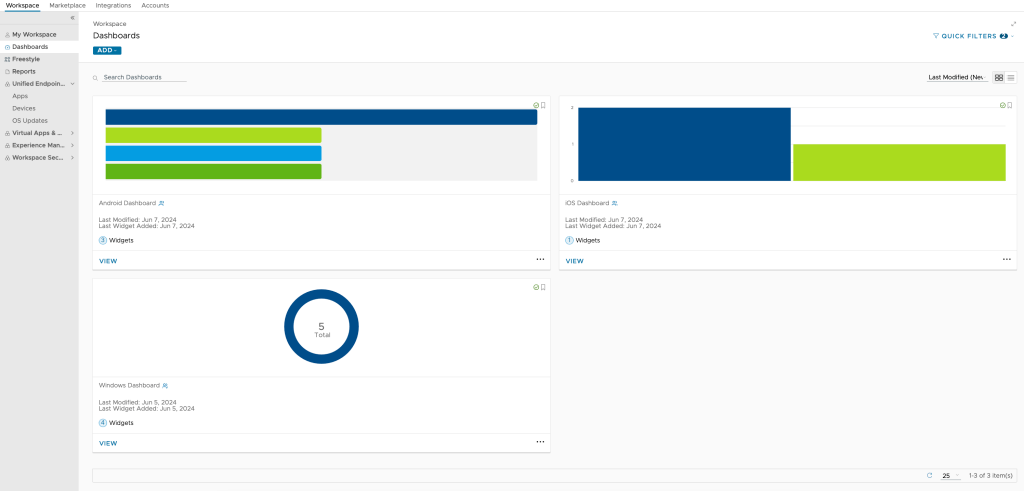
The example we have gone through is not the only way to configure WS1 Intelligence dashboard, as an administrator you have the liberty to customise it as per your requirements. This type of flexibility helps an administrator exploit the true potential of WS1 intelligence .
 Siddesh Patil's Blogs
Leave a comment