Before diving into how Freestyle will contribute to reaching the desired endpoint state for devices, it is crucial to comprehend the obstacles administrators encountered in attaining the desired configuration for devices. These challenges varied, depending on organisational requirements, and could involve managing anywhere from 100-1000+ devices.
Lets take an scenario where you have 100 devices and its important for you as an administrator to see all these devices have the following enabled at a give point of time ,
a. Devices are enrolled and have the required configuration applied post enrollment
b. Security configurations are implemented after the enrollment process.
c.Priority installation is given to enterprise applications that are crucial for business operations.
The above settings are required on day 1 of onboarding and the admin would be keen to know the status of the devices which are being on-boarded and the compliance of the ones which are onboarded successfully.
The question we have here is how would an administrator ensure that the device is secure and compliant while the applications required are installed successfully . With Windows specially applications tend to have dependency apps which are critical for the main app to function/install.
Without Freestyle an admin could leverage product provisioning and have security control using profiles but its a tedious task to monitor these multiple functionalities which is why Freestyle was introduced in order to simplify and automate the method for ensuring a desired end state for an endpoint is met.
Few challenges which an admin could typically face without Freestyle :-
- Ensuring the required applications are installed (based on priority) on a set condition
- Automation in publishing script while the device has completed on-boarding and met a particular condition if required
- Automation of Installing a security setting(profile) on a device based on a particular condition
- Running sensors to extract information which is required for a condition in order to move ahead with device on-boarding
To the basics of building a Workflow:-
How do we start building a Freestyle workflow which would help in installing the security settings and applications when the device onboarding is completed . Lets have a look at an example below,
To begin with as an Administrator you will have to ensure all the required applications and profiles are configured (added) on the UEM console such that while you configure the Freestyle workflow you can select them when required.
In our example here we are ensuring the device is encrypted using either 128 or 256 bit encryption and once this condition is met the application WS1 Assist will be installed on the device.
1 . Navigate to Freestyle
2. Click on New
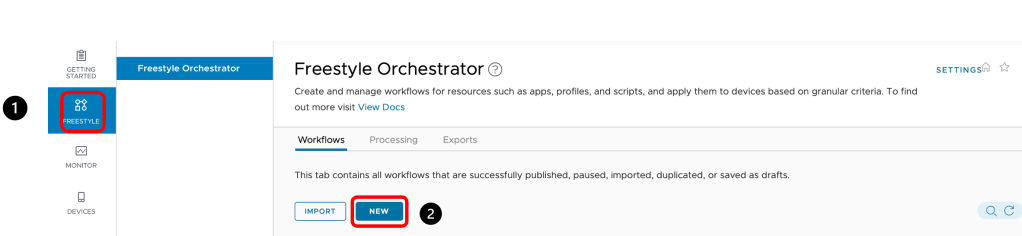
Note: Freestyle is only available for SaaS environments.
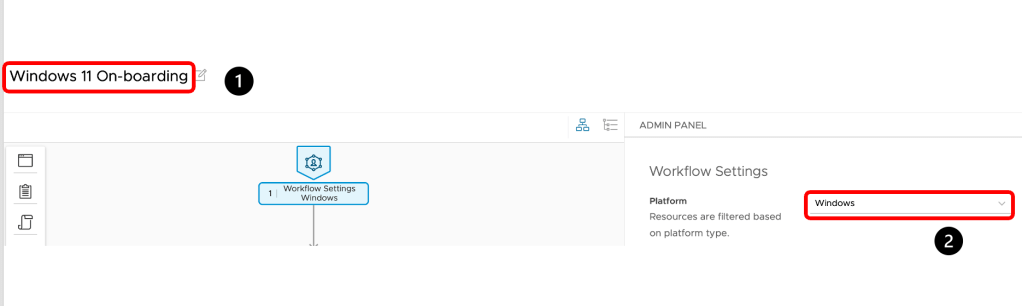
- Add a name to the Freestyle workflow and select the platform to which you are going to publish the workflow.
- For now we have only Windows and MAC but it’s soon to be available for Mobile OS as well.
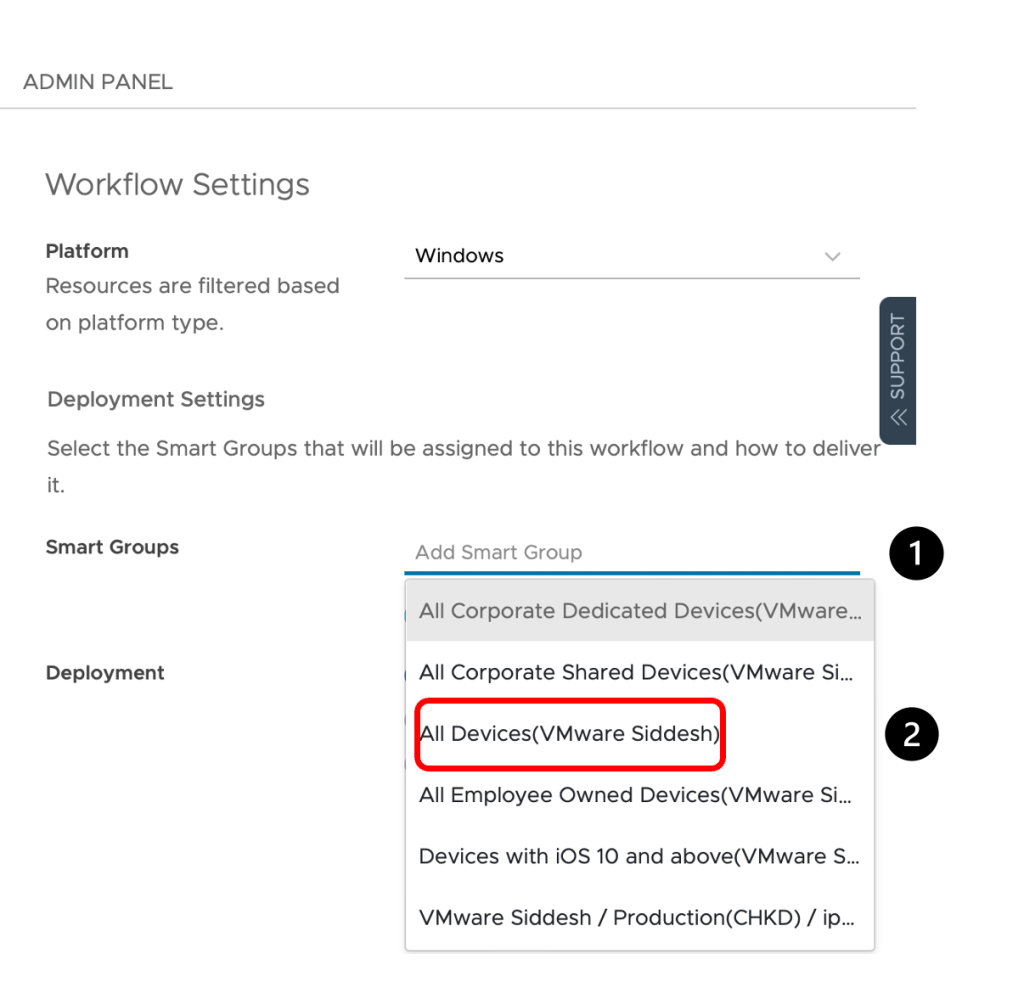
After selecting the platform select the smart group as seen in the image below (The smart group needs to be configured in prior)
Building the Workflow:
Select the appropriate starting point for the workflow by choosing either ,
a. Action – Install a Profile/Application/Script
b.Condition– Application (It exist’s or does not),Device status (Compromised or not),Registry(Exists or not),Sensor(value output),File(Exists or not),Time Window (For maintenance)
c.Group– Installation of applications, profiles & scripts for group of devices
In the example below let’s select Condition.
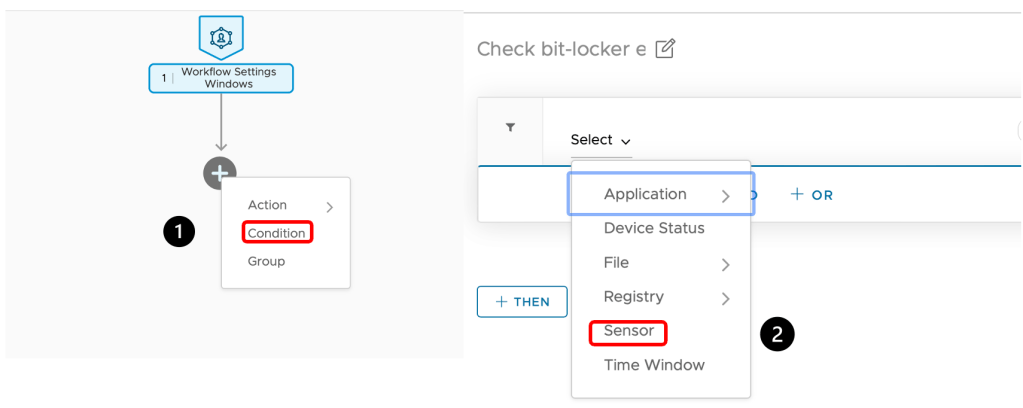
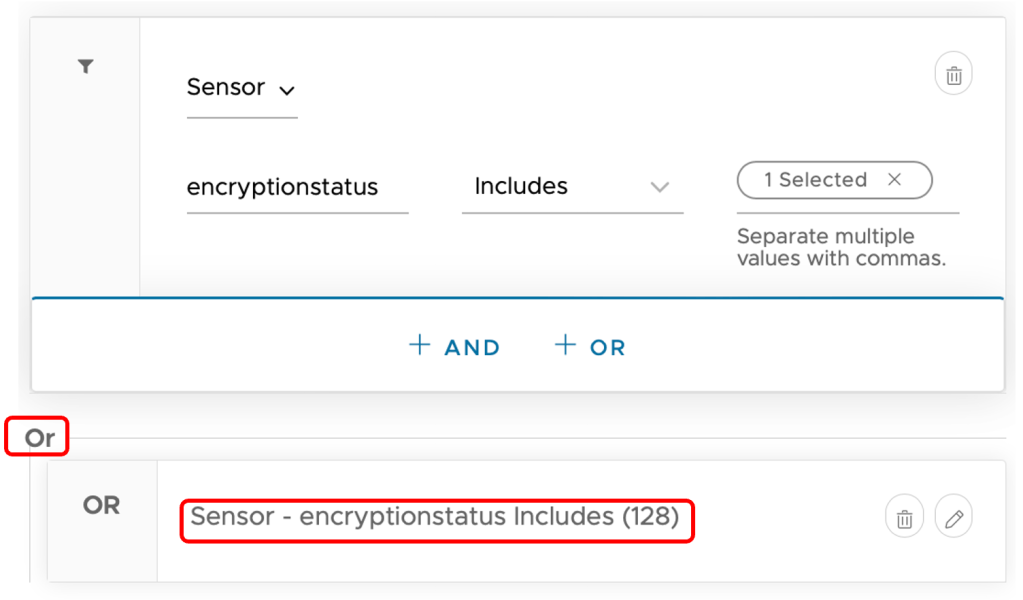
Select the Condition you would like to setup , we have selected Sensor here to detect if the device is in an encrypted state.

Post entering the condition you continue the condition by either selecting And /OR operators.
I have selected the OR operator as in our example here we are checking if the device is encrypted with either 256 or 128 bit encryption.
We will install an application Workspace One Assist once either of the above conditions are met.
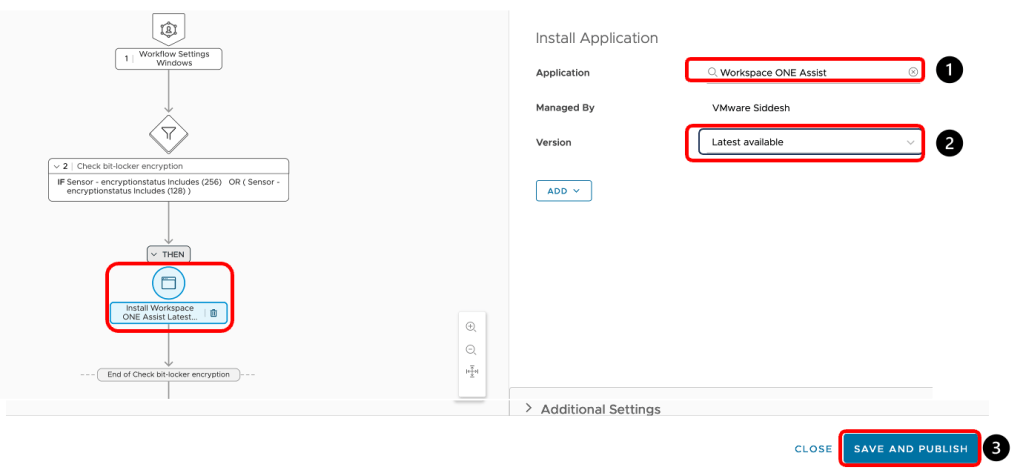
- Select the application in the drop down
- Select either the latest version available or the one which you would like to install on the device
- Save and Publish the configuration once workflow is completed.
Once the Workflow is published it can be monitored as well by clicking on the Workflow name.
Using the above workflow we can be assured that if and only if the device is encrypted will the Workspace ONE Assist application install on the device.
 Siddesh Patil's Blogs
Leave a comment